
|
|
|
 |
|
|||||||||||||||||||||

|

|

|

|

|

|

|

|
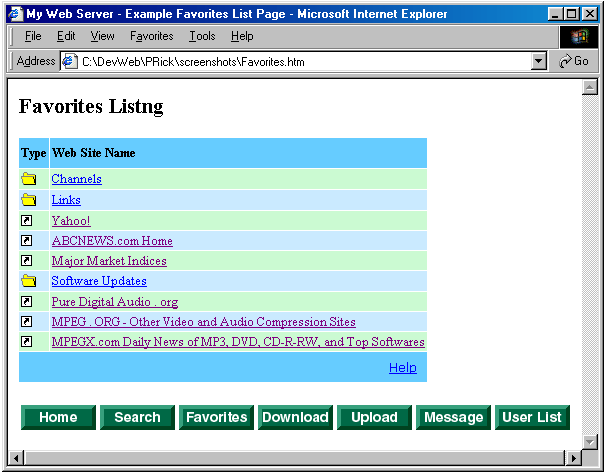
MyWebServer publishes web pages that can be accessed by any web browser on the internet. The web sites published by MyWebServer are no different than any other web site on the internet except the web pages are located on your own computer. Your personal web site can include text, graphics, and anything else you want to share. The built in web form handler makes writing cgi scripts and programs to handle the forms un-necessary. MyWebServer supports cgi programs and perl scripts if you need to do something really special on your web site. You can include MyWebServer's virtual Toolbar to access any of MyWebServer's built in application pages or you can create your own hyper links links if you wish.
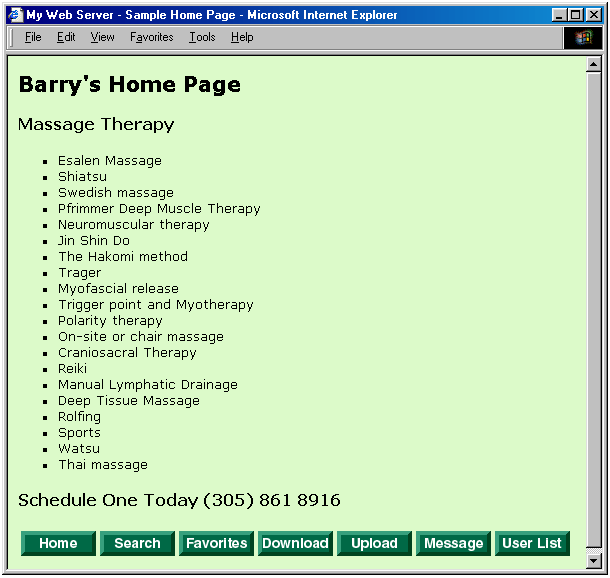
MyWebServer allows users search for files through the published directories on your personal web site. Users enter a word or part of a file name they are searching for on the Search Page and click the submit button. If any files or directories match the search they are displayed in the Search results page.
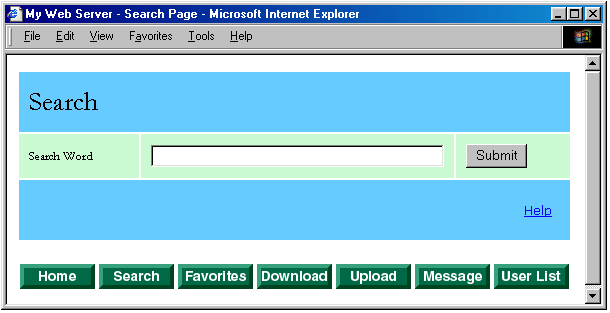
MyWebServer publishes pages containing the favorites list from your web browser. This allows you and your friends to access your favorites list from anywhere on the internet. If you have your favorites list organized in folders you will be able to browse the hierarchy of hyper links. To navigate to one of the listed web locations click on the Web Site Name or on the icon in the Type column. If you click on the shortcut icon the web site will be displayed in a new browser window. If you click on the Web Site Name you will stay in the same window.
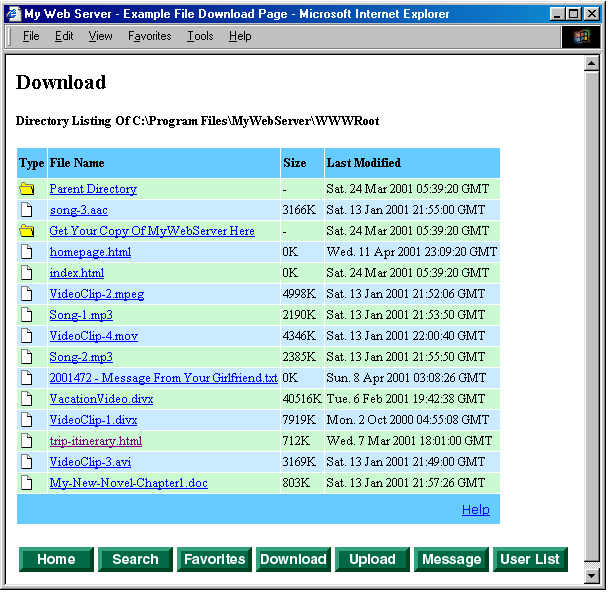
MyWebServer Directory Browsing makes the directories you publish on your computer available from any computer with an Internet connection and web browser. Users can click on directory links to see the contents of embedded directories. Once they find something they would like to view or download they can click on the links to files to read or download them.
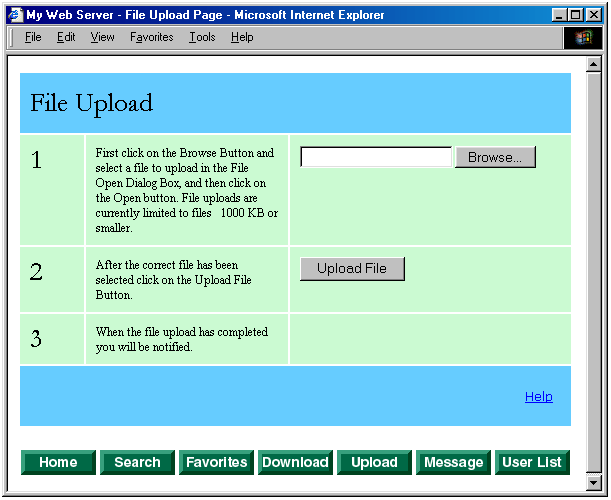
The File Upload Page allows the users of your personal web server upload files to your computer in a directory you specify. You can limit the size of the file uploads that are allowed if you wish.
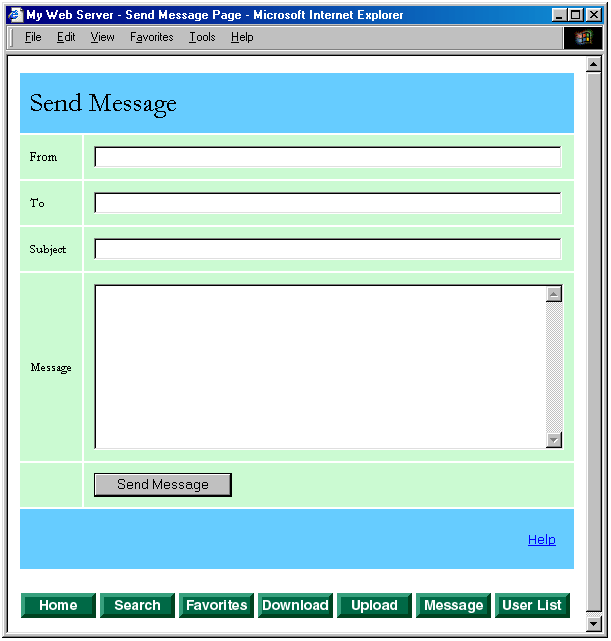
Lets users enter and send text messages directly to your personal web site. The messages go directly from a user's web browser to MyWebServer (peer-to-peer) without using email. The messages can be stored in any directory on your computer that you specify. The directory that you store incoming messages in can be published on your web site or it can be completely private. The privacy of these types of messages is pretty good and its much more private than the public e-mail system but the messages are in clear text. If your personal messages are of a truly private nature you should consider using some type of encryption on them like PGP.
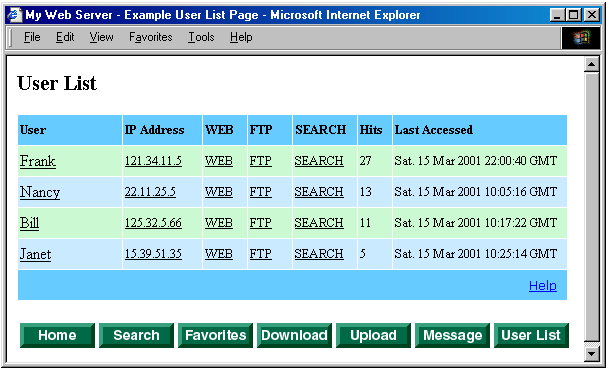
MyWebServer Publishes a list of users that have accessed your personal web site recently and creates clickable hyperlinks to their computers. The User, IP Address and Web hyper links take you to that users Home page if they are currently connected to the internet and are running MyWebServer. The Search hyper links take you to that users Search page if they are currently connected to the internet and are running MyWebServer. The FTP hyper link take you to that users FTP server if they are currently connected to the internet and are running an FTP server.
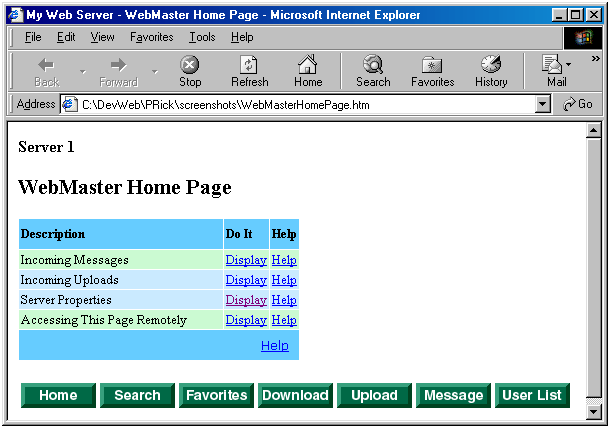
WebMaster Page
Lets you easily check your messages, uploads and posts on your MyWebServer from any where on the internet without having to remember all the URL's. This pages is password protected.
Control Panel
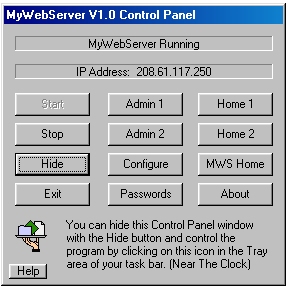
The MyWebServer Control panel has buttons you can use to control MyWebServer and quickly access some of its pages. The Home 1 button launches a web browser and goes to your home page. You can hide the control panel using the hide button and control MyWebServer using its popup menu.
Popup Menu
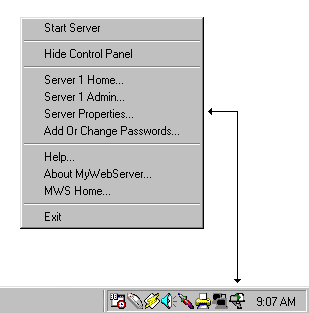
The MyWebServer Popup Menu has menu items you can use to control MyWebServer and quickly access some of its pages. The Server 1 Home command launches a web browser and goes to your home page. You can use the popup menu by clicking on the MyWebServer icon in the tray area of your task bar.